If you cancel a paid plan, it stays active until the end of the period you paid for, then moves to Free.

Open your workspace’s billing settings

Select your workspace and open Settings → Billing. Only the workspace owner can change plans or manage payments.

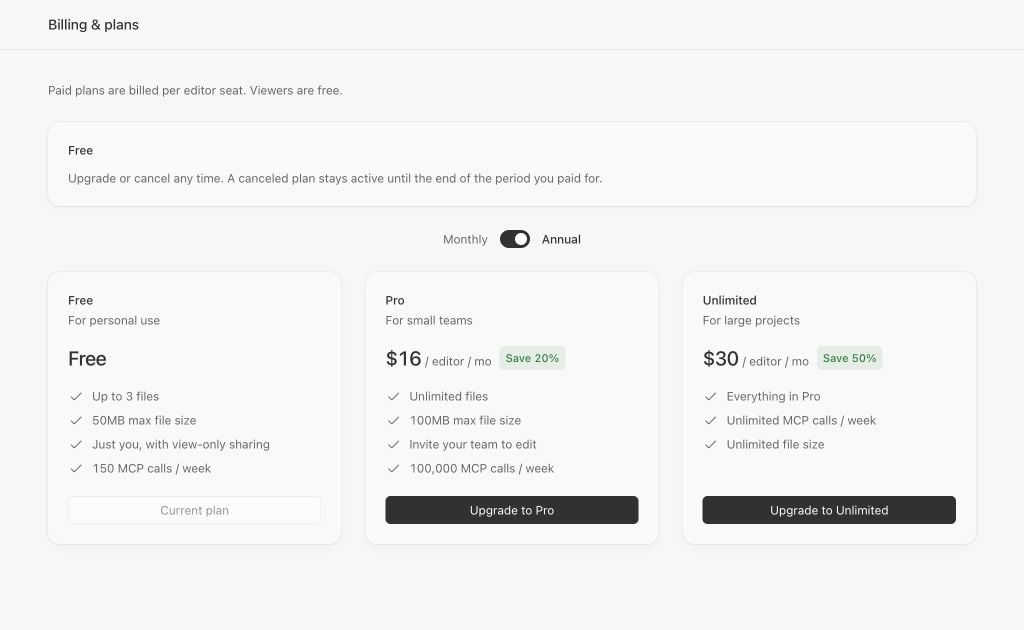
What you see on Free

Lunagraph Billing and plans on Free, with the current-plan summary and upgrade choices.

Example Free workspace.

The summary shows Free and explains cancellation before you upgrade. Owners can choose Monthly or Annual and select a paid plan. A Free workspace with no subscription has no Invoices and payment or Downgrade to Free button.

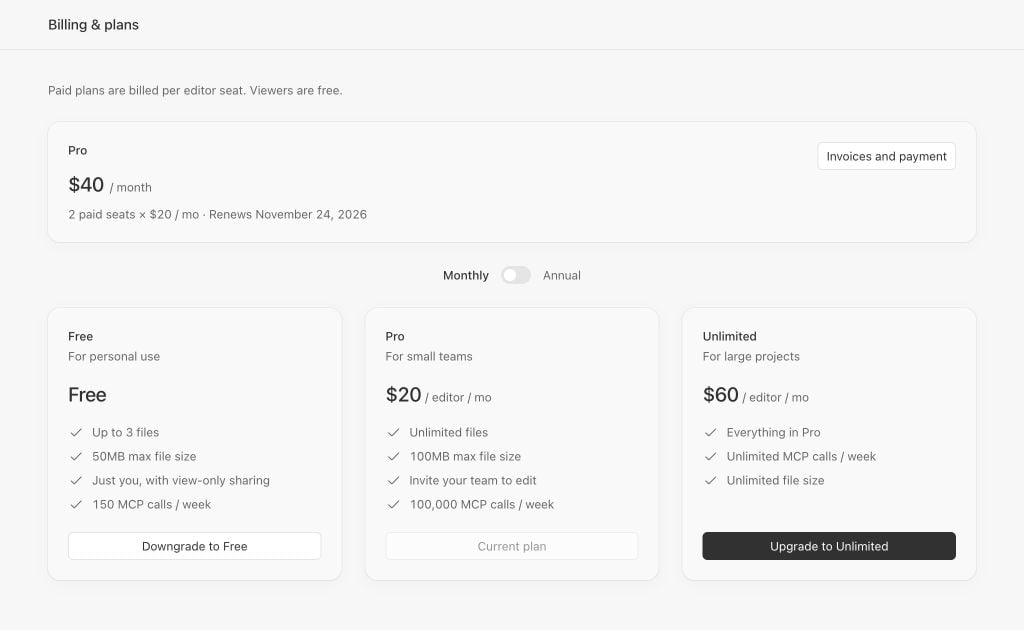
What you see on a paid plan

Lunagraph Billing and plans with two paid editor seats, Invoices and payment, and Downgrade to Free.

Example paid workspace with two editor seats. Review checkout or invoices for actual charges.

The summary shows your plan price and seat count, plus a renewal date when available. Paid plans are billed per editor seat; viewers are free. Review checkout or your invoice for actual charges. Workspace owners can:
  • Open Invoices and payment to launch the Stripe customer portal in your browser. There you can view and download invoices, update your payment method, or schedule cancellation of your paid subscription.
  • Choose Downgrade to Free on the Free card to cancel the paid plan.
If you aren’t the owner, the summary identifies who manages billing. If your subscription has fully ended and you need an older invoice, contact support.

Your agent provider is separate

Your Lunagraph plan is separate from an external agent provider’s subscription or API billing. Canceling Lunagraph doesn’t cancel those subscriptions.

Upgrade your workspace

Review your plan and billing interval before checkout. You can also ask a question before paying.